Getting started
You can learn almost everything in Self-Quantum Liquidity without connecting a wallet. Start by reading, and only connect when you are ready.
What you need
- To read pools and positions: a browser. Nothing else. No wallet, no sign-in.
- To create a position (Uniswap v3): a browser wallet such as MetaMask or Rabby, a little of the network's native coin for gas, and the two assets you want to provide.
- A small amount to practice with. The first position is for learning the flow, not for the money.
The five-minute read-only tour
Open the app. The page opens on the Pools tab and starts scanning every network straight away.
Watch the scan finish
Under the heading you will see a line like
30 of 149 pools shown · 15 networks scanned. Each network is read directly from the blockchain through a public endpoint, so it takes a second or two. Pools with no value or no active liquidity are hidden by default.Narrow it down with the filters
Click a network chip (for example Base) and a version chip (v3). The table keeps only the pools you picked, sorted by value held in the pool (TVL).
Read a row
Each row shows the network, the Uniswap version, the pair, the fee tier, the current price, the pool's TVL and its active liquidity. Hover the TVL of a v4 row to see why it can be empty.
Open a pool in the Builder
Click Builder → on any row. The Builder opens with that exact pool selected and a live price chart on a drafting-style axis.
Drag a range
Move the Lower bound and Upper bound sliders, or click a preset such as ±10%. The panel on the right updates the snapped price range, the status and the capital efficiency.
Check any address on the Positions tab
Paste a public address and click Read positions. You will see its Uniswap positions across all networks, each with a status such as IN RANGE or OUT OF RANGE.
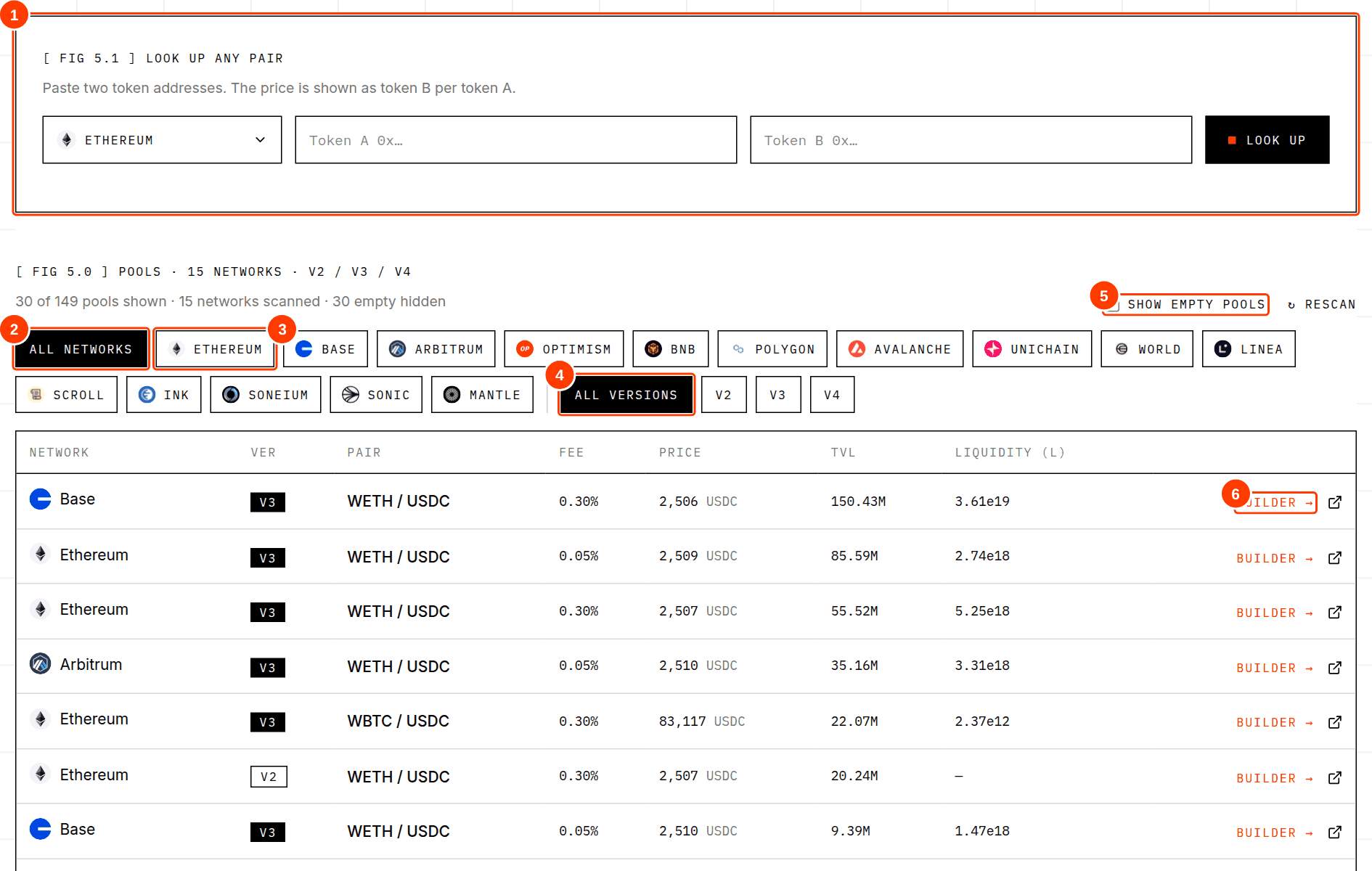
- 1Look up any pair: paste two token addresses to find their pools on a chosen network.
- 2All networks: show pools from every network.
- 3A network chip: show a single network (every chip carries that network's logo).
- 4Version filter: v2, v3 or v4.
- 5Show empty pools: reveal pools with no value or no active liquidity (hidden by default).
- 6Builder →: open this pool in the Builder.
Before you create your first position
Run through this list once. It takes a few minutes and covers the mistakes that cost people the most.
- I opened Self-Quantum Liquidity from my own bookmark and the address bar shows the exact address I expect.
- I am using a wallet account that holds only what I am willing to risk.
- I read the Security guide, at least the sections on approvals and fake tokens.
- I understand what impermanent loss is (see Liquidity concepts) and that I can end up with less than if I had simply held.
- The pool I picked has real value in it (TVL) and the tokens are the real tokens, not look-alikes.
- I chose a range I can explain in one sentence, for example “about 10% either side of today's price”.
- I am starting with a small test amount, not my savings.
- I will read the summary in the app and the request in my wallet before I confirm either.
Common first-timer mistakes
- Choosing a range because it "looks like a lot of fees". A very narrow range can earn more while the price is inside, but it goes out of range quickly and then earns nothing.
- Forgetting the second token. A v3 position needs both assets, in the ratio the range requires. The Builder shows how much of the second token to expect.
- Approving more than needed. Self-Quantum Liquidity approves only the exact amount. Other sites may ask for unlimited approvals, which you can decline or limit.
- Using the wrong network. Your wallet must be on the same network as the pool. The app shows a Switch network button if it is not.
- Treating the estimate as exact. Amounts shown before you send are estimates. The price can move before the transaction is mined.
“Uniswap v3 is a noncustodial automated market maker implemented for the Ethereum Virtual Machine. In comparison to earlier versions of the protocol, Uniswap v3 provides increased capital efficiency and fine-tuned control to liquidity providers, improves the accuracy and convenience of the price oracle, and has a more flexible fee structure.”
“Noncustodial” is the key word. When you provide liquidity through Uniswap the tokens go into Uniswap's smart contracts, and your position is represented by an NFT in your own wallet. Self-Quantum Liquidity never holds the funds. Continue with Liquidity concepts to understand what you are actually doing, or jump to Using the app.
These docs are educational. They are not financial, legal or tax advice. Providing liquidity carries risk, including loss of funds. Self-Quantum Liquidity is new software and has not been audited.